myPascoConnect: Login Guide for Students, Parents and Staff
I see myPascoConnect as one of those school systems that becomes simple once you understand what it actually does. For Pasco County Schools students and staff, it functions as a central sign-on point for educational applications and digital resources. Instead of remembering a different login for every classroom service, students can open myPascoConnect and reach tools such as myLearning, Office 365 and other resources assigned by the district or school. Current Pasco County school websites continue to describe myPascoConnect as the district’s single sign-on solution for digital resources. (pes.pasco.k12.fl.us)
The part that often causes confusion is the difference between myPascoConnect and the parent portal. Students primarily use myPascoConnect to open learning applications, while parents currently access grades, attendance, schedules, report cards, test scores and related family information through Pasco County Schools’ Parent Portal and myStudent resources. The district’s current parent webpage separates these tools clearly, listing Parent Portal among its Pasco ONE resources while student pages continue to link directly to myPascoConnect. (pasco.k12.fl.us)
In this guide, I will explain how the myPascoConnect login works, who should use it, how students can reach Canvas and Office 365, what parents should use instead, and what to check when an account does not work as expected. I will also separate current district information from instructions preserved on older school handouts, because login systems and terminology can change over time.
What Is myPascoConnect?
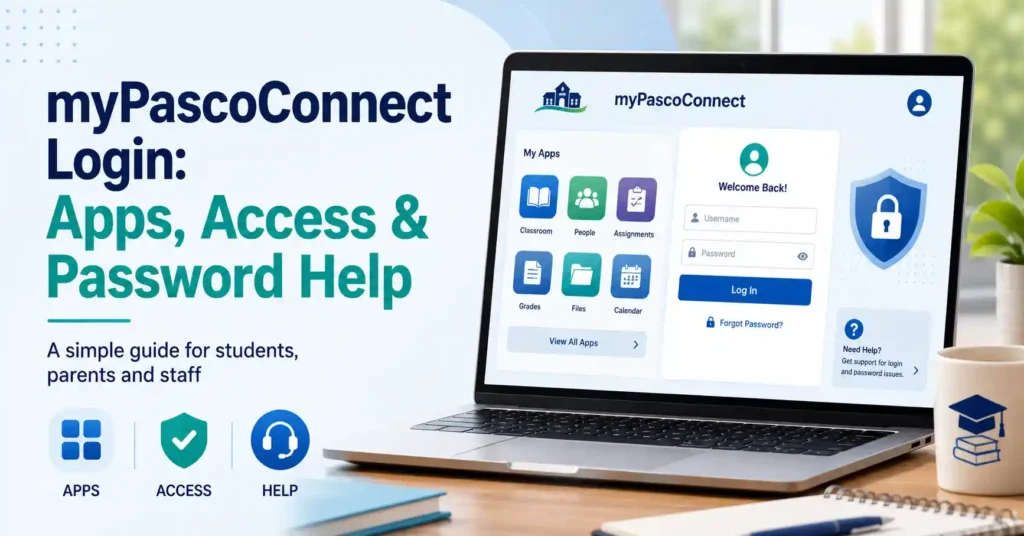
myPascoConnect is Pasco County Schools’ single sign-on portal for students, staff and district digital resources. In practical terms, a single-sign-on system lets an authorized user authenticate once and then launch multiple approved applications from a central dashboard rather than manually entering separate credentials for every program.
Current Pasco County school pages describe the service very directly:
“Single sign-on solution for MyLearning, Digitial resources, Office365 and other apps.”
Pasco County Schools school websites. (aai.pasco.k12.fl.us)
The spelling of “Digital” is inconsistent on some school-page descriptions, but the underlying message is clear. myPascoConnect acts as the access point connecting students with district learning applications.
Pasco eSchool provides more detail. Its current digital-resource instructions say students can reach Canvas, digital textbooks, other resources and Office 365 through myPascoConnect. Once a student successfully signs in, the user reaches a LaunchPad containing icons for the resources available to that account. (eschool.pasco.k12.fl.us)
I think “LaunchPad” is the easiest way to understand the system. myPascoConnect itself is not every educational application. It is the doorway that helps an authenticated student open the applications Pasco County Schools has made available.
Who Should Use myPascoConnect?
Students and employees are the two clearest direct user groups for myPascoConnect. Parents have related digital resources, but they should not assume they need to sign in using their child’s student account.
| User | Main Access Point | Typical Purpose |
|---|---|---|
| Students | myPascoConnect | Open myLearning, Office 365, digital resources and assigned school apps |
| Teachers and staff | myPascoConnect | Access district applications and work resources |
| Parents and guardians | Parent Portal / myStudent | Check grades, attendance, schedules, report cards, test information and school communication |
| Pasco eSchool students | myPascoConnect | Open Canvas, email, digital materials and online-course resources |
| Families needing login help | School or district support | Recover credentials or resolve account-access problems |
| The most important distinction in this table is between student access and parent access. Pasco County Schools’ current Parents page identifies Parent Portal as the place to create a parent account and check grades, attendance, schedules, test scores and more. Meanwhile, the district’s current Students page labels myPascoConnect as the option to “Log in to access sites and programs.” (pasco.k12.fl.us) | ||
| That difference prevents one of the most common mistakes I see in unofficial myPascoConnect guides, where the student portal and parent portal are presented as though they were interchangeable. |
Official myPascoConnect Login
The official login page is hosted within the Pasco County Schools domain. The login page itself requires JavaScript to function. (mypascoconnect.pasco.k12.fl.us)
Official myPascoConnect login
When I am dealing with any school login portal, I recommend reaching it from the district’s own website rather than relying on an unfamiliar third-party page appearing in a search result. Pasco County Schools’ student webpage provides a direct myPascoConnect link, which gives users another reliable route to the portal. (pasco.k12.fl.us)
How Students Log In to myPascoConnect
Current Pasco school instructions identify the student’s username as the Student ID, sometimes also called the lunch number. The student’s password is the district-provided myPascoConnect password. (wchs.pasco.k12.fl.us)
A straightforward student login process looks like this:
- Open a supported web browser. Pasco eSchool instructions specifically recommend Chrome.
- Go to the official myPascoConnect website.
- Select the option to sign in to myPascoConnect.
- Enter the student’s Student ID or lunch number as the username.
- Enter the student’s current school-issued password.
- Complete any first-login verification prompts shown by the portal.
- After authentication, open the required application from the LaunchPad.
Pasco eSchool’s digital-resources page describes the last step particularly well:
“You are now on your LaunchPad. Simply click on an icon to access the resource.”
Pasco eSchool. (eschool.pasco.k12.fl.us)
Some Pasco documentation refers to the password as an LDAP password, while other school pages simply call it the student’s password. Because password terminology can change, I would follow the terminology and credentials currently provided by the student’s school rather than rely on an old example password from a PDF or archived handout. (eschool.pasco.k12.fl.us)
What Students Can Access Through myPascoConnect
The exact application list can differ according to grade level, school, course enrollment and district assignments. That is one reason two students may not see an identical LaunchPad.
Several resources repeatedly appear in official Pasco County Schools materials.
myLearning and Canvas
myLearning is Pasco County Schools’ Canvas learning environment. Pasco eSchool tells students to access Canvas through myPascoConnect, and its live-lesson instructions direct students to choose the myLearning icon after signing in. (eschool.pasco.k12.fl.us)
Canvas can contain course pages, assignments, learning materials, calendars, teacher announcements, grades connected to coursework and communication tools.
For Pasco eSchool students, the Canvas Inbox can be used to communicate with teachers or other authorized course participants. The district notes that users appear in the Inbox once they have an active enrollment and that concluded courses may no longer allow messaging. (eschool.pasco.k12.fl.us)
Office 365
Pasco eSchool identifies Office 365 as another resource available from myPascoConnect. Students can use Microsoft’s online productivity applications and, depending on current district licensing and eligibility, may have access to tools such as Outlook, OneDrive and browser-based Office applications. (eschool.pasco.k12.fl.us)
The student-email instructions say Pasco eSchool students can open Office 365 and then select Outlook to reach their school email. (eschool.pasco.k12.fl.us)
Digital Textbooks and Learning Applications
Official Pasco eSchool materials state that myPascoConnect provides access to digital textbooks and other online educational resources in addition to Canvas and Office 365. (eschool.pasco.k12.fl.us)
A district elementary-resources document has historically listed programs such as Lexia Core5, HMH Into Reading, Zearn and Quaver among applications delivered through myPascoConnect. Application availability can change and is often grade-dependent, so I would treat the icons visible in a student’s current LaunchPad as the authoritative list for that particular account. (pasco.k12.fl.us)
How to Access Canvas Through myPascoConnect
Students who need Canvas should generally avoid searching separately for random Canvas login pages. The district-supported route is through myPascoConnect.
The process is:
- Sign in to myPascoConnect.
- Wait for the LaunchPad to load.
- Locate the myLearning icon.
- Select myLearning.
- Choose the appropriate course from the Canvas dashboard.
Pasco eSchool’s current live-lesson guide uses exactly this basic flow, directing students to myPascoConnect first and then to the myLearning icon. (eschool.pasco.k12.fl.us)
If a course does not appear, I would not immediately assume the login itself is broken. Canvas visibility can depend on enrollment, the course being published and the relevant term. Pasco eSchool notes that students cannot join a course unless it has been published. (eschool.pasco.k12.fl.us)
In that situation, contacting the teacher may be more appropriate than repeatedly resetting the myPascoConnect password.
How to Access Student Email
For Pasco eSchool students, the official process begins inside myPascoConnect.
After logging in, the student selects Office 365 and then Outlook. Pasco eSchool describes student email as a primary communication method between students and teachers for its online courses. (eschool.pasco.k12.fl.us)
A typical workflow is therefore:
- Sign in to myPascoConnect.
- Select Office 365.
- Open Outlook.
- Review school messages.
- Return regularly for teacher communication and course information.
Students should follow the specific communication expectations of their school or course because not every campus or program necessarily uses email in exactly the same way as Pasco eSchool.
myPascoConnect for Teachers and Staff
Teachers and employees also use myPascoConnect to access district systems.
The current Pasco Web Help Desk login page specifically instructs teachers and staff who do not know their username or cannot remember their password to contact the technology help desk at 813-794-2859, with extension 42859 also shown. (webhelpdesk.pasco.k12.fl.us)
Older official district instructions describe the employee myPascoConnect account as connected with other district employee systems. Because authentication arrangements can evolve, employees should follow current district technology instructions rather than relying on an old student-focused tutorial. (spes.pasco.k12.fl.us)
This is another situation where I would avoid third-party “password reset” sites. Staff accounts can provide access to sensitive district systems, making the official district help process the safer route.
myPascoConnect for Parents
Parents should understand that current Pasco County Schools resources direct them toward Parent Portal rather than treating a child’s myPascoConnect credentials as the parent’s account.
The current Parents webpage describes Parent Portal as a place to create a parent account and view grades, attendance, schedules, test scores and other student information. It also lists myLearning Observer as a separate parent resource. (pasco.k12.fl.us)
A current Pasco high-school guide says parents creating a myStudent Parent Portal account may need the student’s ID number, date of birth and Parent PIN. The Parent PIN can be obtained from the student’s school. (fhs.pasco.k12.fl.us)
That gives parents their own access path without requiring them to impersonate the student.
myPascoConnect vs. myStudent Parent Portal
The names are similar enough to create understandable confusion, but the purposes are different.
| Feature | myPascoConnect | Parent Portal / myStudent |
|---|---|---|
| Primary audience | Students and staff | Parents and guardians |
| Main purpose | Single sign-on to educational applications | Student records and family information |
| Canvas access | Students can launch myLearning | Parents may use myLearning Observer separately |
| Office 365 | Available to eligible student accounts | Not the primary parent function |
| Grades | Course grades may appear in learning systems | Parent Portal is designed for official student progress information |
| Attendance | Not the main purpose of myPascoConnect | Available through Parent Portal |
| Schedules | Access may occur through related student systems | Parent Portal provides schedule information |
| Test scores | Related apps may be available | Parent Portal provides test information and links to state results |
| Parent account creation | Not normally the parent route | Yes |
| Student access | Student account supplied by district | Students may reach myStudent through myPascoConnect |
| Pasco County Schools’ assessment page explains that parents can use Parent Portal to reach statewide assessment information, while older district documentation notes that students can access myStudent through their myPascoConnect account. (pasco.k12.fl.us) | ||
| The simplest rule is this: if a student needs classroom apps, start with myPascoConnect. If a parent wants official family access to grades, attendance, schedules or records, start with the Parent Portal page. |
Creating a Parent Portal Account
Parents can begin from the Pasco County Schools Parents page and select Parent Portal.
A current school guide provides the following general process:
- Visit the Pasco County Schools website.
- Open the Parents section.
- Select myStudent or Parent Portal.
- Choose the registration option for a new account.
- Follow the account-creation prompts.
- Enter the student’s identifying information requested by the system.
- Provide the Parent PIN when required.
- Link the student to the parent’s account.
The Fivay High School instructions specify the student’s ID or lunch number, date of birth and Parent PIN as information needed to add a student. (fhs.pasco.k12.fl.us)
Parents should use their own account credentials rather than the student’s username and password. This helps preserve proper access controls and keeps each person’s activity associated with the correct account.
What Parents Can See in the Portal
Current district resources advertise Parent Portal access to several important areas:
- Grades and academic progress
- Attendance
- Student schedules
- Report cards
- Test information
- Teacher communication
- Statewide assessment information
- Certain transportation information
Pasco County Schools’ current transportation page, for example, directs parents to myStudent Parent Portal for student bus pass information. (pasco.k12.fl.us)
The district’s assessment page also explains how parents can move from Parent Portal into the Florida Department of Education Family Portal to review statewide testing information. (pasco.k12.fl.us)
This broader functionality is another reason I would not use “myPascoConnect parent login” and “myStudent parent portal” as interchangeable phrases in instructions.
How Student Credentials Work
A current Pasco high-school page describes student access in a simple format: Student ID as the username and a password provided to students. (wchs.pasco.k12.fl.us)
Older official instructions sometimes refer to the Student ID as the lunch number. These are commonly the same identifying number in district documentation. (eschool.pasco.k12.fl.us)
Passwords deserve more caution.
Older Pasco tutorials show example password formats. Those examples should never be interpreted as passwords that work for a particular student. Students should use only their currently assigned credentials.
If the username itself is unknown, the current Pasco Web Help Desk page says parents can retrieve a student’s username and password through their myStudent parent portal, while students can also ask their teacher for assistance. (webhelpdesk.pasco.k12.fl.us)
First-Time myPascoConnect Login
Pasco eSchool’s current instructions say some students may be asked to verify their password again during the first login. Once the verification is complete, the user reaches the LaunchPad. (eschool.pasco.k12.fl.us)
The same instructions warn that certain applications can request another login the first time they are opened so myPascoConnect can store the necessary credentials for future single-sign-on access. (eschool.pasco.k12.fl.us)
I would therefore distinguish between two situations:
A student who cannot enter myPascoConnect at all probably has an account, username, password or browser issue.
A student who successfully opens myPascoConnect but cannot enter one particular application may instead have an application-specific authentication or permission problem.
That distinction saves time when troubleshooting.
myPascoConnect Login Problems and Fixes
The following table covers the problems I would check first.
| Problem | Likely Cause | What to Try |
|---|---|---|
| Login page will not load | JavaScript disabled or browser issue | Enable JavaScript and use an up-to-date browser |
| Username rejected | Incorrect Student ID or account | Confirm the Student ID with school or parent portal |
| Password rejected | Wrong, expired or mistyped password | Re-enter carefully and request school help if needed |
| Caps Lock warning | Incorrect capitalization | Check keyboard state before retrying |
| LaunchPad opens but app fails | App-specific sign-in or permission issue | Follow app prompt, then contact teacher or support |
| Canvas course missing | Enrollment or publication issue | Ask the course teacher |
| Parent cannot see student | Student not linked to parent account | Add student using Parent PIN, ID and birth date |
| Parent uses student credentials | Wrong account type | Create or use the parent’s own Parent Portal account |
| Staff cannot remember password | Employee credential issue | Contact Pasco technology help desk |
| Suspicious login page | Possible unofficial or unsafe page | Return to the official pasco.k12.fl.us domain |
| This table is intentionally ordered from simple checks to support escalation. Many login failures are caused by an incorrect account type, mistyped credential or wrong webpage rather than a district-wide outage. |
Why the Login Page Says JavaScript Is Required
The current myPascoConnect login page displays a message stating that JavaScript must be enabled to continue. (mypascoconnect.pasco.k12.fl.us)
If a user sees only a loading message, I would first confirm that JavaScript is enabled and that browser extensions are not preventing the login application from running.
Pasco eSchool specifically recommends Chrome in its myPascoConnect instructions. (eschool.pasco.k12.fl.us)
This does not necessarily mean every other modern browser will fail. It simply means Chrome is the browser explicitly recommended in the district material I reviewed.
What to Do If You Forgot Your myPascoConnect Password
The correct recovery path depends on whether the account belongs to a student, employee or parent.
Students
The current Web Help Desk page says students who need assistance can ask their teacher. It also states that parents can retrieve a student’s username and password through the myStudent parent portal. (webhelpdesk.pasco.k12.fl.us)
Teachers and Staff
The same district page directs teachers and staff who cannot remember their credentials to the technology help desk at 813-794-2859. (webhelpdesk.pasco.k12.fl.us)
Parents
Parents use their separate Parent Portal credentials. Parent Portal password recovery should therefore be handled through the Parent Portal process rather than by changing the student’s myPascoConnect password.
Older Pasco parent documentation describes a password-recovery option that sends replacement access information to the email associated with the parent account. Because interface details can change, parents should follow the prompts currently shown on the district Parent Portal. (tewms.pasco.k12.fl.us)
Why an Application May Not Appear on the LaunchPad
Not every myPascoConnect account contains the same applications.
Resource availability may depend on:
- School
- Grade level
- Courses
- Enrollment status
- Teacher assignments
- District licenses
- Program eligibility
- Whether an application is currently being used
For example, an elementary student may see literacy or math tools that a high-school student does not need. A Pasco eSchool student may rely heavily on Canvas and online communication resources. An employee LaunchPad will naturally contain different work applications.
If an app that a teacher specifically told a student to use is missing, the teacher or school technology contact is normally a better first point of contact than an unrelated internet tutorial.
How to Use myPascoConnect More Efficiently
Once login is working, I would use the portal as the starting point for school applications whenever the district provides an icon there.
That approach has several advantages.
First, it reduces the risk of opening the wrong version of a service.
Second, it takes advantage of single sign-on when supported.
Third, it helps users work with the accounts assigned by Pasco County Schools rather than accidentally creating personal accounts on educational platforms.
Fourth, it can make troubleshooting easier because teachers can give instructions based on the same LaunchPad.
A student who needs Canvas, for example, can follow the district’s consistent route: myPascoConnect, myLearning, course.
myPascoConnect Security Tips
School accounts contain educational and personal information, so basic account security matters.
I recommend students never post their Student ID and password publicly, never send credentials to people claiming they can “fix” an account on social media, and never enter a Pasco password into an unrelated site.
The most trustworthy domain for the portal is the official Pasco County Schools domain. When in doubt, students can begin from the official district Students page rather than following a link from an unfamiliar website. (pasco.k12.fl.us)
Students should also sign out when using a shared or public computer.
Saving passwords on a personal family device may be convenient, but saving school credentials on a public computer can allow the next user to access the account.
myPascoConnect on a Home Computer
Students can use the web portal from home when they have internet access and valid district credentials.
Pasco eSchool specifically promotes myPascoConnect as a way to reach school learning materials and resources outside the physical classroom. Its current guidance says students can access digital textbooks, Canvas and Office 365 through the portal. (eschool.pasco.k12.fl.us)
This makes the portal especially useful for completing homework, checking online courses, accessing documents stored in district cloud services and continuing coursework when learning remotely.
The applications themselves may have different technical requirements, so successful myPascoConnect authentication does not guarantee that every activity will work perfectly on every device.
Using myPascoConnect on Phones and Tablets
Because myPascoConnect is web-based, users may be able to reach it through a modern mobile browser. However, individual applications launched from the portal may work better through dedicated apps or on a larger device.
For parents, Pasco County Schools currently promotes Pasco ONE applications from the Apple App Store and Google Play, while previous district communication has also promoted mobile access to myStudent. (pasco.k12.fl.us)
I would therefore choose the tool according to the job:
Use myPascoConnect when a student needs district learning applications.
Use Parent Portal or Pasco ONE resources when a parent needs family-facing student information.
Use application-specific mobile apps only when the district or teacher recommends them.
myPascoConnect and Office 365
Office 365 remains one of the most useful services associated with student myPascoConnect access.
Pasco eSchool’s technology page specifically references OneDrive, email, Word Online and other Microsoft tools. (eschool.pasco.k12.fl.us)
The benefit is broader than simply writing documents. A student can potentially use cloud storage to keep school files accessible across devices and open web-based productivity tools without depending entirely on locally installed software.
Pasco eSchool students can also use Outlook for school email. (eschool.pasco.k12.fl.us)
Users should remember that district-managed Microsoft accounts are school accounts. School rules, account policies and retention practices may differ from those of a personal Microsoft account.
myPascoConnect and Digital Learning
The wider value of myPascoConnect becomes clearer when we look beyond the login screen.
Pasco County Schools uses many digital systems. Without a central access point, a student could need different bookmarks and credentials for a learning management system, email, textbooks, reading programs, mathematics tools and other services.
myPascoConnect reduces that fragmentation.
I think the practical value is especially noticeable for younger students. Instead of remembering where every educational website is located, the student can learn one routine: open the district portal, sign in, find the correct icon.
For teachers, that also creates a repeatable instruction such as “open myPascoConnect and choose myLearning” instead of asking every student to navigate independently to a third-party platform.
Common myPascoConnect Mistakes
One common mistake is searching for “myPascoConnect parent login” and then attempting to use a student’s credentials to manage parent information.
Parents should use the Parent Portal resources provided on the district Parents page. (pasco.k12.fl.us)
Another mistake is assuming every missing application indicates a broken account. Application availability can depend on courses or school assignments.
A third mistake is using outdated instructions without checking current district pages. Pasco has published myPascoConnect guides over many years, and older PDFs may contain interface screenshots or terminology that no longer matches the current login page.
A fourth mistake is confusing myLearning with myPascoConnect. myLearning is the Canvas-based learning environment. myPascoConnect is the sign-on portal used to reach it.
A fifth mistake is assuming myPascoConnect is itself the official gradebook for parents. The current Parent Portal is designed specifically to give parents access to grades, attendance, schedules, test scores and other student information. (pasco.k12.fl.us)
How I Recommend Using myPascoConnect
For a student, I recommend treating myPascoConnect as the home base for digital school work.
Start there whenever a teacher refers to a district-provided digital resource.
For a parent, I would use the parent-facing resources first. Create and maintain a Parent Portal account, make sure the correct student is linked, and use that account for official progress information.
For staff, use district credentials and district technology support rather than attempting unofficial password workarounds.
For everyone, bookmark official Pasco County Schools pages rather than search for the login from scratch every day.
That approach is simple, but it prevents many of the account, identity and security problems that produce unnecessary frustration.
Conclusion
myPascoConnect is best understood as Pasco County Schools’ central single-sign-on doorway for students and staff, not as a replacement for every school system the district operates. I find that once this distinction is clear, the portal becomes much easier to navigate. Students can sign in using their district credentials, reach their LaunchPad and open resources such as myLearning, Office 365 and other assigned digital applications. Current Pasco school websites continue to identify myPascoConnect as the single-sign-on solution for learning resources and school apps. (aai.pasco.k12.fl.us)
Parents should follow a different route. The current Pasco County Schools Parents page directs families to Parent Portal for grades, attendance, schedules, test scores and related information. (pasco.k12.fl.us)
My practical recommendation is to start from official Pasco County Schools pages, use the correct account for your role, and contact the teacher, school or district support team when credentials cannot be recovered normally. Avoid unofficial login pages and outdated instructions when a current district source is available. Doing those few things solves much of the confusion surrounding myPascoConnect before it becomes a larger problem.
READ: Jane Dobbins Green: Ray Kroc’s Second Wife and Life Story
Frequently Asked Questions
What Is myPascoConnect?
myPascoConnect is the Pasco County Schools single-sign-on portal used primarily by students and staff to access digital applications. Current Pasco school webpages describe it as a solution for reaching myLearning, digital resources, Office 365 and other apps. After students authenticate, they receive a LaunchPad containing icons for the resources available to their account. The exact apps can differ by school, grade and course. (aai.pasco.k12.fl.us)
What Is the Official myPascoConnect Login Website?
The official portal is hosted within the Pasco County Schools web environment at mypascoconnect.pasco.k12.fl.us. The page requires JavaScript to operate. Students can also reach myPascoConnect through the official Pasco County Schools Students page, which lists it under everyday resources. Using the district’s own webpage is safer than entering school credentials into an unfamiliar site found through advertising or third-party search results. (mypascoconnect.pasco.k12.fl.us)
What Is the myPascoConnect Username for Students?
Pasco school instructions identify the student’s username as the Student ID. Some district materials also call this the lunch number. Students should use the identifier issued by Pasco County Schools rather than an email address unless a particular application specifically requests another format after myPascoConnect has already authenticated them. If the student does not know the username, the district Web Help Desk says the student can ask a teacher or a parent can retrieve account information through myStudent Parent Portal. (wchs.pasco.k12.fl.us)
What Should I Do If I Forgot My myPascoConnect Password?
Students who cannot remember their myPascoConnect credentials should ask their teacher or use the family support route identified by Pasco County Schools. The current Web Help Desk states that parents can retrieve a student’s username and password through their myStudent parent portal. Teachers and staff who cannot remember their credentials are directed to the district technology help desk at 813-794-2859. Parents should use Parent Portal password recovery for their own account rather than trying to reset the student’s account. (webhelpdesk.pasco.k12.fl.us)
How Do I Open Canvas From myPascoConnect?
Sign in to myPascoConnect and select the myLearning icon. myLearning is Pasco County Schools’ Canvas learning environment. Students can then choose the appropriate course from their dashboard. Pasco eSchool’s current live-lesson instructions use this same path: enter myPascoConnect, choose myLearning and then open the relevant course. If the expected course does not appear, contact the teacher because enrollment or course publication can affect Canvas visibility. (eschool.pasco.k12.fl.us)
Can Parents Log In to myPascoConnect?
Parents have separate family-facing resources and generally should use Pasco County Schools’ Parent Portal rather than signing in as the student. The current Parents page describes Parent Portal as the place to create an account and check grades, attendance, schedules, test scores and more. Parents can also use a myLearning Observer account where appropriate. A parent should not share or routinely operate under the student’s credentials when a dedicated parent account is available. (pasco.k12.fl.us)
How Do Parents Check Grades in Pasco County Schools?
Parents can use the Pasco County Schools Parent Portal, also associated with myStudent. The district’s current parent resources say the portal provides grades, attendance, schedules, test scores and related information. Parents who need to create an account may need their child’s Student ID, date of birth and Parent PIN supplied by the school. Once the student is linked, the parent can use their own credentials to access the student’s information rather than using the child’s myPascoConnect account. (fhs.pasco.k12.fl.us)
Why Is myPascoConnect Not Loading?
The official login page requires JavaScript, so a disabled JavaScript setting can prevent the portal from loading correctly. Pasco eSchool instructions recommend using Chrome. If the page still does not work, confirm that you are on the official Pasco County Schools site, refresh the browser and check whether extensions are blocking scripts. If authentication succeeds but a particular app fails, the problem may belong to that application rather than to myPascoConnect itself. (mypascoconnect.pasco.k12.fl.us)
Can I Access Office 365 Through myPascoConnect?
Yes. Pasco eSchool identifies Office 365 as one of the resources students can reach through myPascoConnect. The school’s technology instructions reference Microsoft services such as OneDrive, web-based Office tools and email. Pasco eSchool’s student-email guide tells students to sign in to myPascoConnect, select Office 365 and open Outlook. Availability and account features can depend on the student’s current district enrollment and licensing. (eschool.pasco.k12.fl.us)
Why Is an App Missing From My myPascoConnect LaunchPad?
Apps can vary according to a student’s grade, school, courses and district assignments. A missing icon therefore does not always mean the account is broken. If a teacher has specifically instructed the student to use an application and it is not visible, contact the teacher or school. For Canvas, course availability can also depend on active enrollment and whether the teacher has published the course. Pasco eSchool notes that students cannot join an unpublished course. (eschool.pasco.k12.fl.us)
Sources and References
Pasco County Schools’ official Students page currently identifies myPascoConnect as the resource students use to log in to sites and programs. (pasco.k12.fl.us)
Pasco eSchool’s official digital-resource instructions explain how students sign in and use the LaunchPad to reach Canvas, Office 365, textbooks and other resources. (eschool.pasco.k12.fl.us)
The current Pasco County Schools Parents page distinguishes Parent Portal, myLearning Observer and other family resources from student myPascoConnect access. (pasco.k12.fl.us)
The Pasco Web Help Desk provides current credential-support guidance for students, teachers and staff. (webhelpdesk.pasco.k12.fl.us)
Current Pasco school websites describe myPascoConnect as a single-sign-on solution for myLearning, digital resources, Office 365 and other applications. (aai.pasco.k12.fl.us)
The supplied editorial brief requires a structured H1/H2/H3 hierarchy, evidence verification, practical examples, tables, a conclusion before FAQs and a minimum long-form article length. Per the latest request, paragraph separator lines and unnecessary spacing have been omitted.
Disclaimer
This guide is for informational purposes and is not an official Pasco County Schools support document. Portal interfaces, passwords, authentication procedures, application availability and parent-account requirements can change. Always prioritize instructions shown on the current Pasco County Schools website, your school, teacher or district technology support team. Never publish or share a student’s password, Parent PIN or other private account credentials.